How to View Your Token in MetaMask
After your token has been successfully created on MEMAO, you can view and manage it using the MetaMask browser extension.
Currently, MEMAO supports MetaMask on desktop browsers only.
Before You Start
Make sure you have:
- A successfully deployed token
- Your Token Contract Address
- MetaMask browser extension installed (Chrome, Firefox, or Edge)
- If you haven't installed MetaMask yet, please install the official browser extension first: 👉 https://metamask.io/download/
- MetaMask connected to the same network where your token was deployed
(e.g. Ethereum Mainnet)
⚠️ Important
The screenshots shown below use the Sepolia test network.
To view your real token, switch MetaMask to the Ethereum Mainnet before importing.
Step-by-Step Guide
1. Open MetaMask (Browser Extension)
- Open your browser and click the MetaMask extension icon
- Unlock your wallet if needed
- Ensure you are connected to the correct network
⚠️ If you are on the wrong network, your token will not be visible.
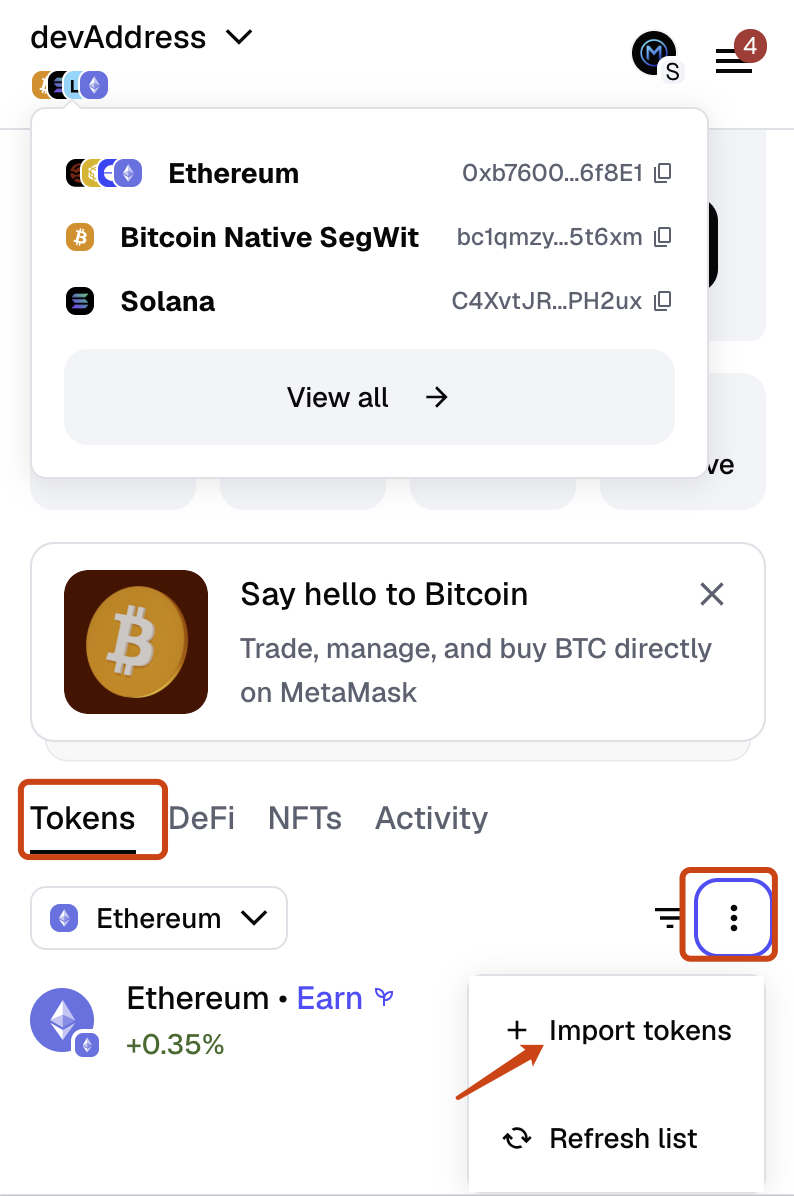
2. Go to the “Tokens” Tab
- In the MetaMask extension, switch to the Tokens tab
- Click the three-dot menu (⋮) in the top-right corner, then select Import tokens
3. Add Your Token Contract Address
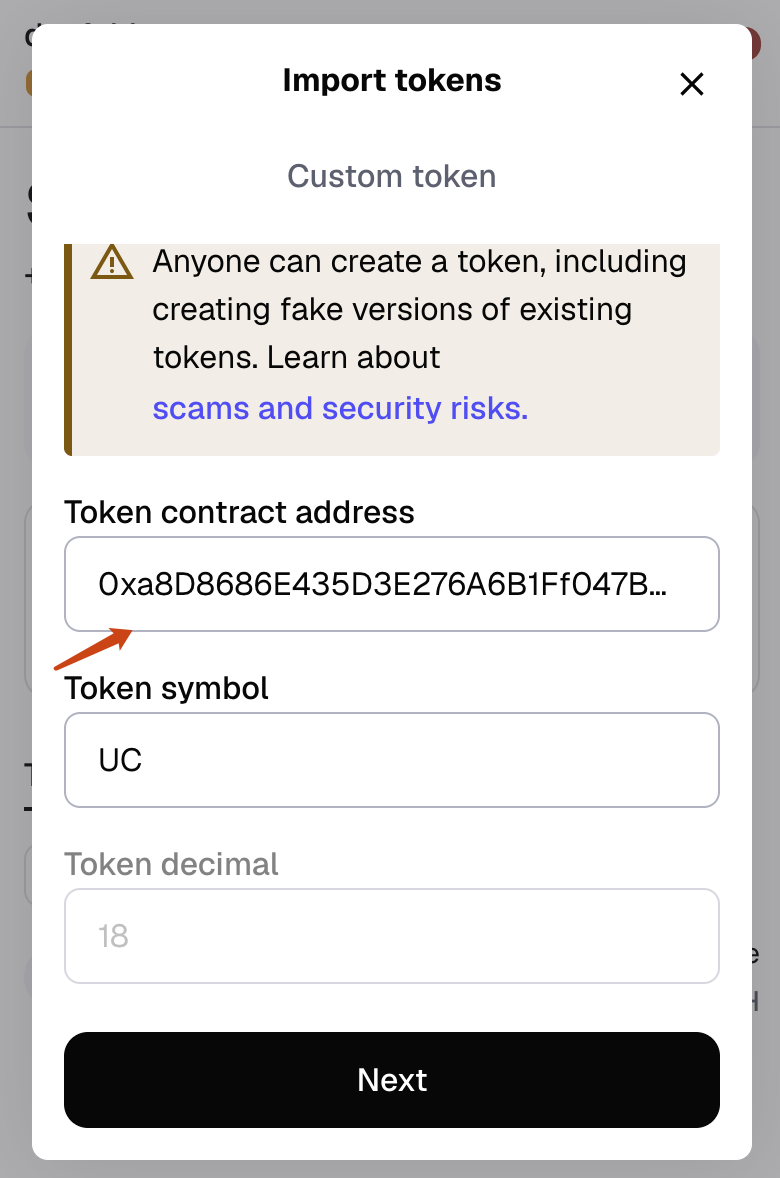
- Paste your Token Contract Address into the Token Contract Address field
- MetaMask will automatically detect:
- Token Symbol
- Decimals
If these fields do not auto-fill, you can enter them manually.
4. Confirm Import
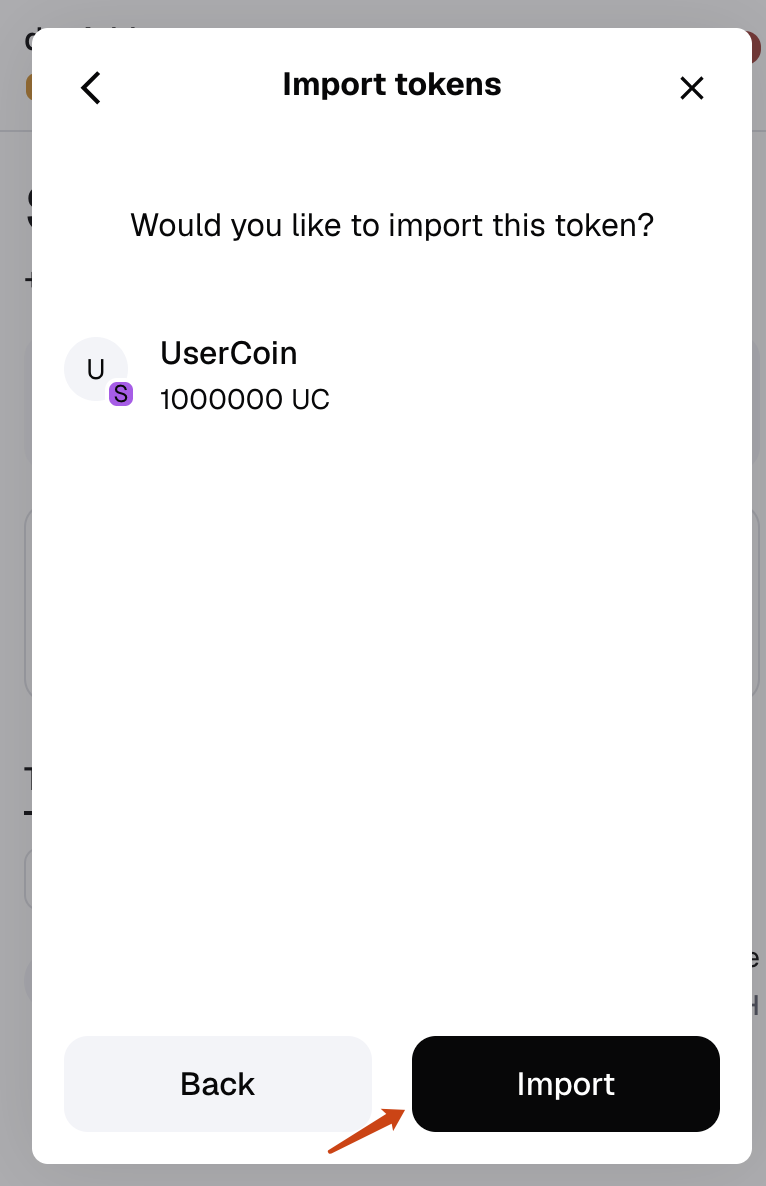
- Click Next
- Click Import
🎉 Your token will now appear in your MetaMask wallet.
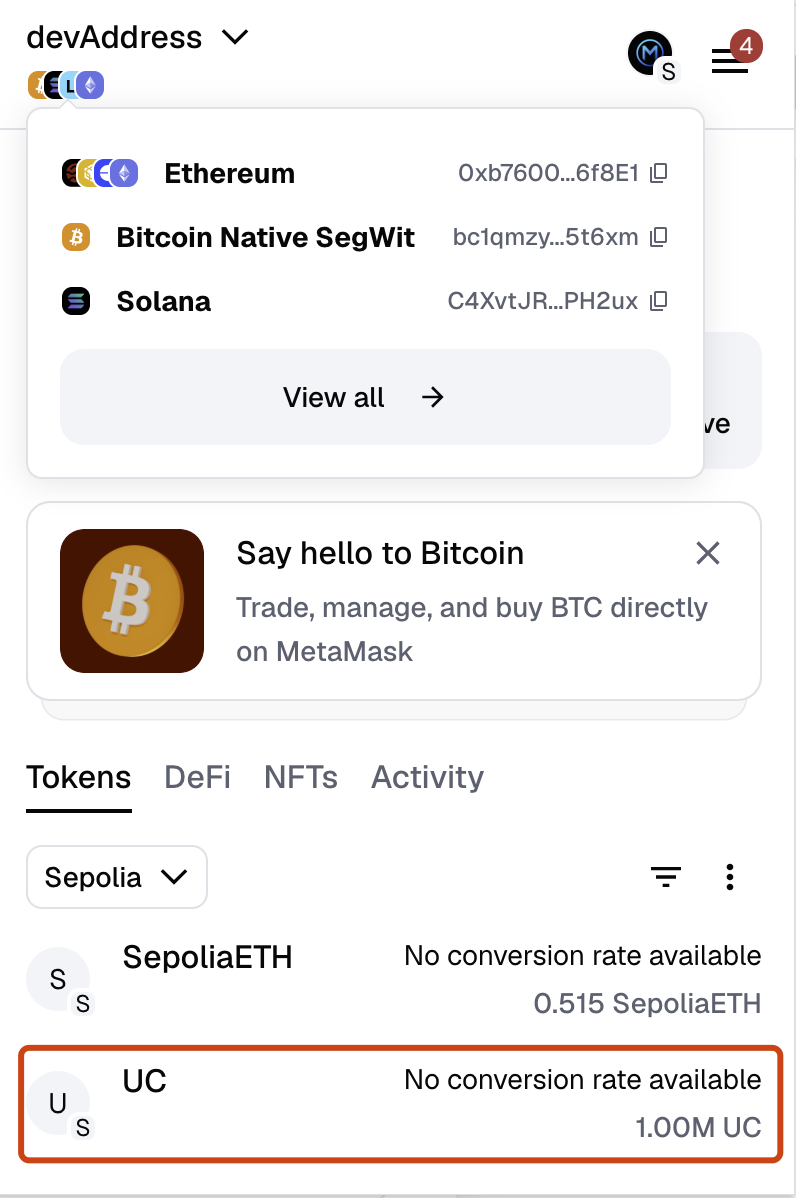
Token Information
You can find your token details on the MEMAO dashboard after deployment:
- Network: Same as deployment network
- Token Address: Your ERC-20 contract address
- Symbol: Defined during creation
- Decimals: Usually 18
Adding a token to MetaMask does not affect ownership, supply, or contract behavior.
Common Questions
Why can’t I see my token balance?
- Make sure MetaMask is connected to the correct network
- Verify that the token contract address is correct
- Ensure you are using the MetaMask browser extension
Does importing a token cost gas?
- No. Importing a token into MetaMask is completely free.
What’s Next?
Now that your token is visible in MetaMask, you can:
- Send and receive your token
- Use it with dApps that support ERC-20 tokens
- Share your token contract address with your community
For more tools and management features, visit the MEMAO dashboard.